Hierarchies
Who this guide is for
Supply chain planners, inventory managers, and system administrators who need to organise items and locations into navigable tree structures for filtering, grouping, and aggregation across the Mirabelle dashboard and downstream engines.
Table of Contents
- Overview
- Core Concepts
- Creating a Hierarchy
- Building the Tree
- Assigning Members
- Using Hierarchies in the Dashboard
- Hierarchy in MEIO
- Hierarchy in Allocation
- API Reference
Overview
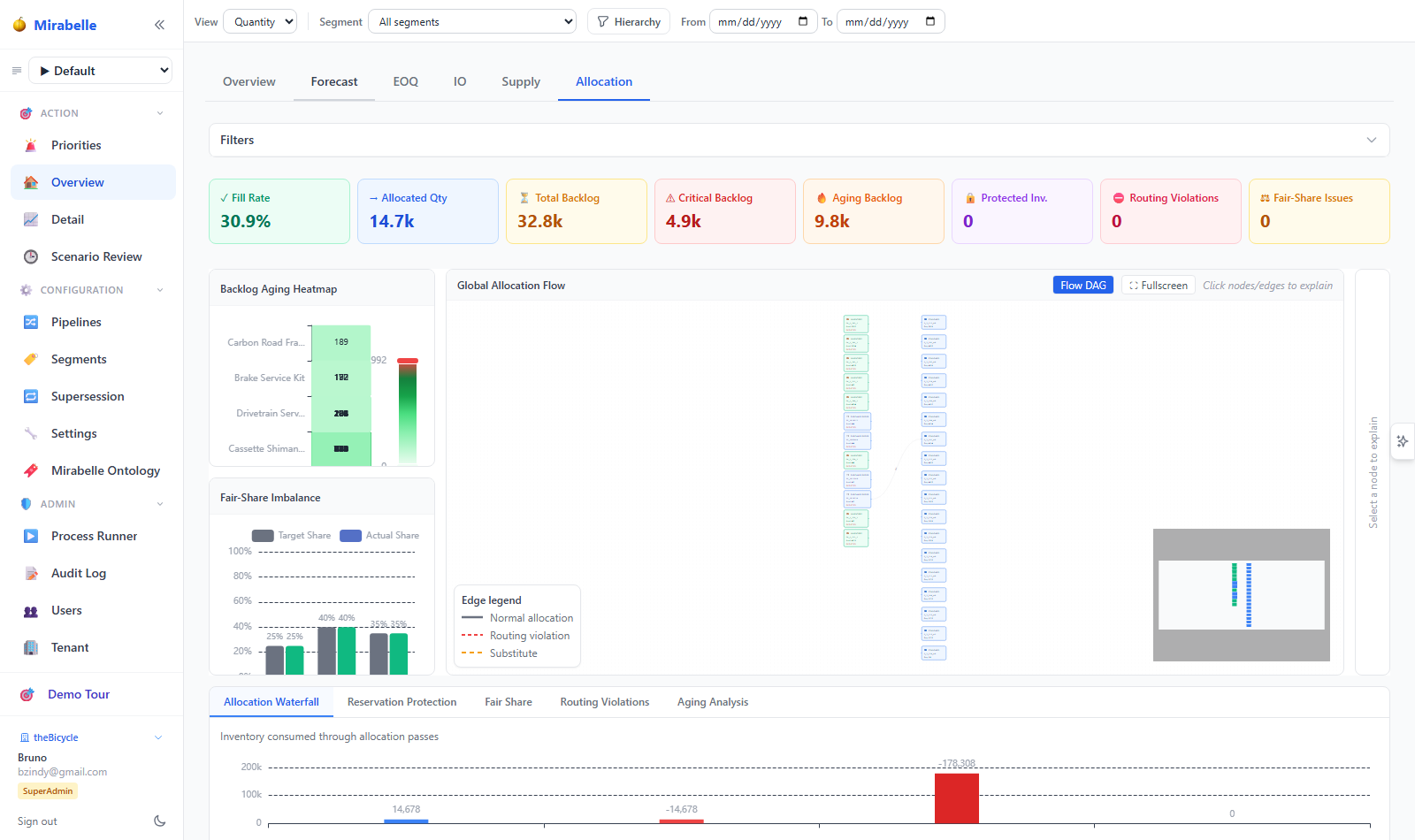
A hierarchy in Mirabelle is a user-defined tree structure that organises your master data — items or sites — into levels for aggregation and navigation. Typical examples:
- Product hierarchy: Department → Category → Subcategory → Item
- Location hierarchy: Country → Region → Site
Once defined, hierarchies power three capabilities across the application:
| Capability | How hierarchies help |
|---|---|
| Dashboard filtering | Select a node in the tree to filter every tab and the series table to only that branch |
| Report grouping | Group KPIs and charts by hierarchy level instead of raw item/site codes |
| Aggregate views | KPIs (demand, fill rate, safety stock) are automatically summed at each level, with roll-up from children to parents |
Core Concepts
Hierarchy
A hierarchy is a named tree definition stored in master.hierarchy. It has:
| Field | Description |
|---|---|
name |
Display name, e.g. "Product Hierarchy" |
entity_type |
Either "item" or "site" — determines whether the tree references items or locations |
levels |
Ordered JSON array of {key, label} pairs defining the tree levels (top to bottom) |
description |
Optional free-text description |
sort_order |
Numeric sort weight (lower = first) |
is_active |
Soft-delete flag; inactive hierarchies are hidden everywhere |
Example levels definition for a 4-level product hierarchy:
[
  {"key": "department",  "label": "Department"},
  {"key": "category",    "label": "Category"},
  {"key": "subcategory", "label": "Subcategory"},
  {"key": "item_class",  "label": "Item Class"}
]
The key field must match an attribute key stored in the attributes JSONB
column of master.item (for entity_type = "item") or master.site
(for entity_type = "site").
Hierarchy Node
A node is a single entry in the tree — for example "Bikes" under Department = Sports Equipment. Each node carries:
| Property | Description |
|---|---|
level |
Zero-based depth index (0 = root) |
key |
Attribute key this level maps to |
label |
Human-readable level label |
value |
The actual attribute value (e.g. "Bikes") |
parent_value |
Value of the parent node (null for roots) |
count |
Number of leaf-level members (items/sites) under this node, rolled up from children |
children |
Array of child nodes |
Members
Members are the items or sites that belong to a leaf node. When you select
a node in the hierarchy filter, Mirabelle resolves the selection to a list of
item_id / site_id integers (and their unique_id combinations). Parent
nodes automatically roll up — their member list is the union of all
descendant leaf members.
Multiple Hierarchies
You can create independent hierarchies for different dimensions. The most common pattern is one item hierarchy and one site hierarchy. When both are active simultaneously in the dashboard, their member sets are AND-intersected — only series matching both selections are shown.
Creating a Hierarchy
Via the API
Use POST /api/hierarchies with a JSON body:
{
  "name": "Product Hierarchy",
  "entity_type": "item",
  "levels": [
    {"key": "department",   "label": "Department"},
    {"key": "category",     "label": "Category"},
    {"key": "subcategory",  "label": "Subcategory"},
    {"key": "item_class",   "label": "Item Class"}
  ],
  "description": "4-level product tree for sports equipment",
  "sort_order": 0
}
Response:
Prerequisites
Before a hierarchy can produce a tree, the attribute keys referenced in its
levels array must exist in the attributes JSONB column of the corresponding
master table (master.item or master.site). These attributes are
populated during the ETL/import step. If an attribute key is missing from all
rows, the tree will have no nodes at that level.
Building the Tree
The tree is auto-built from distinct attribute values — you do not manually add nodes. When you call the tree endpoint, Mirabelle:
- Queries
master.item(ormaster.site) for every distinct combination of the level attribute values. - Constructs a nested node structure where each unique value at level 0 becomes a root, and subsequent levels become children.
- Counts the members at each leaf and rolls up the counts to parents so every node shows the total number of items/sites beneath it.
Tree endpoint
Response shape:
{
  "hierarchy": {
    "id": 1,
    "name": "Product Hierarchy",
    "entity_type": "item",
    "levels": [
      {"key": "department", "label": "Department"},
      {"key": "category", "label": "Category"},
      {"key": "subcategory", "label": "Subcategory"},
      {"key": "item_class", "label": "Item Class"}
    ]
  },
  "nodes": [
    {
      "level": 0,
      "key": "department",
      "label": "Department",
      "value": "Sports Equipment",
      "parent_value": null,
      "count": 342,
      "children": [
        {
          "level": 1,
          "key": "category",
          "label": "Category",
          "value": "Bikes",
          "parent_value": "Sports Equipment",
          "count": 128,
          "children": [
            {
              "level": 2,
              "key": "subcategory",
              "label": "Subcategory",
              "value": "Mountain",
              "parent_value": "Bikes",
              "count": 64,
              "children": []
            }
          ]
        }
      ]
    }
  ]
}
Assigning Members
Members are not manually assigned — they are derived from the master data.
Each item or site row has an attributes JSONB column. When the hierarchy tree
is built, items/sites whose attribute values match a node's path are counted as
members of that node (and every ancestor above it).
Members endpoint
The selections query parameter is a URL-encoded JSON array of
{level, key, value} objects identifying the path from the root to the
desired node.
Example — get all items under Department = Sports Equipment, Category = Bikes:
GET /api/hierarchies/1/members?selections=[
  {"level":0,"key":"department","value":"Sports Equipment"},
  {"level":1,"key":"category","value":"Bikes"}
]
Response:
{
  "entity_type": "item",
  "item_ids": [101, 102, 103, 104],
  "site_ids": [],
  "unique_ids": [
    "101-1", "101-2", "102-1", "103-1", "103-2", "104-1"
  ],
  "count": 6
}
Automatic roll-up
Selecting a parent node (e.g. only department=Sports Equipment) returns all
items under every descendant path. The roll-up happens transparently — no
additional request is needed.
Using Hierarchies in the Dashboard
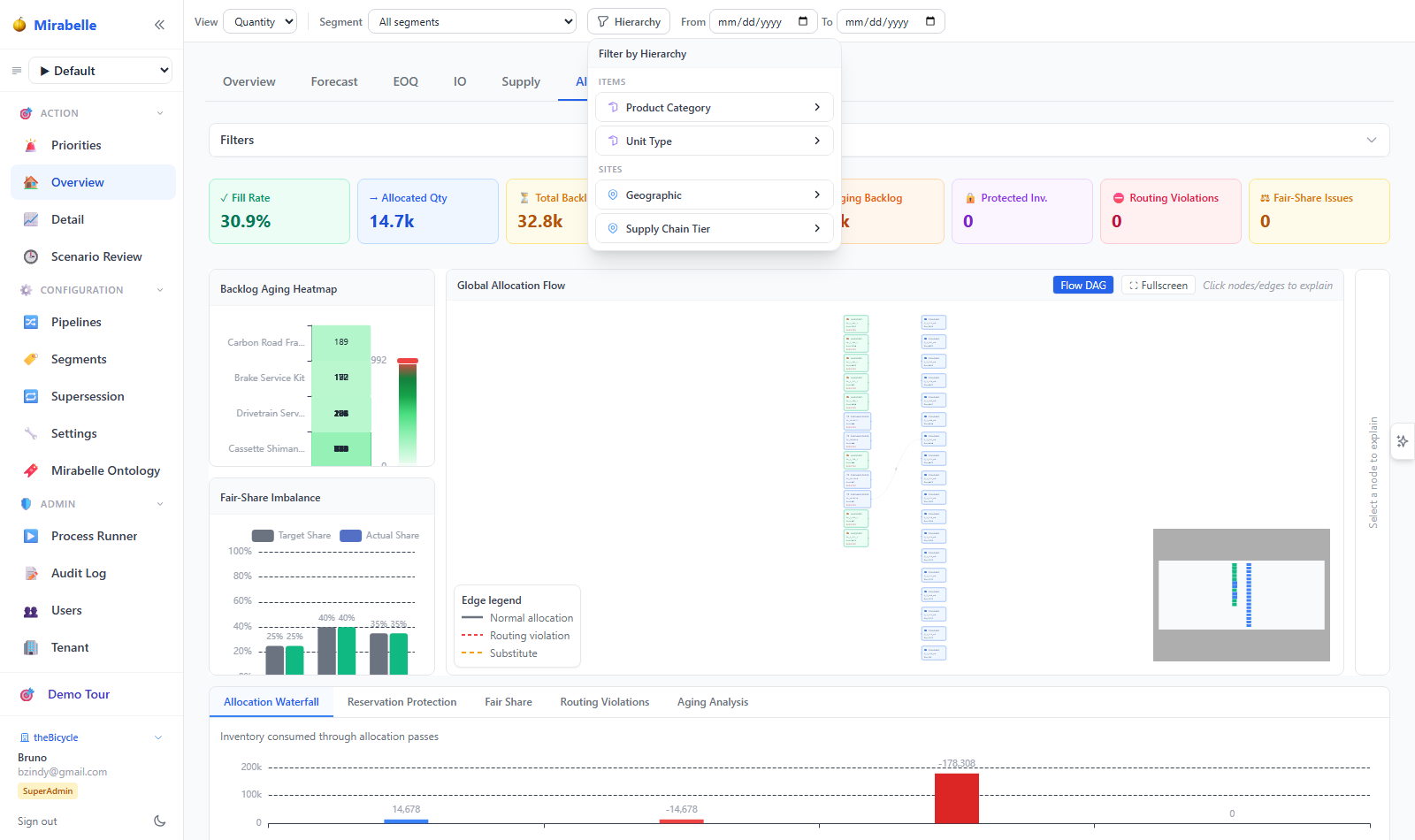
The HierarchyFilter component appears in the Dashboard toolbar next to the
segment selector.
Selecting a node
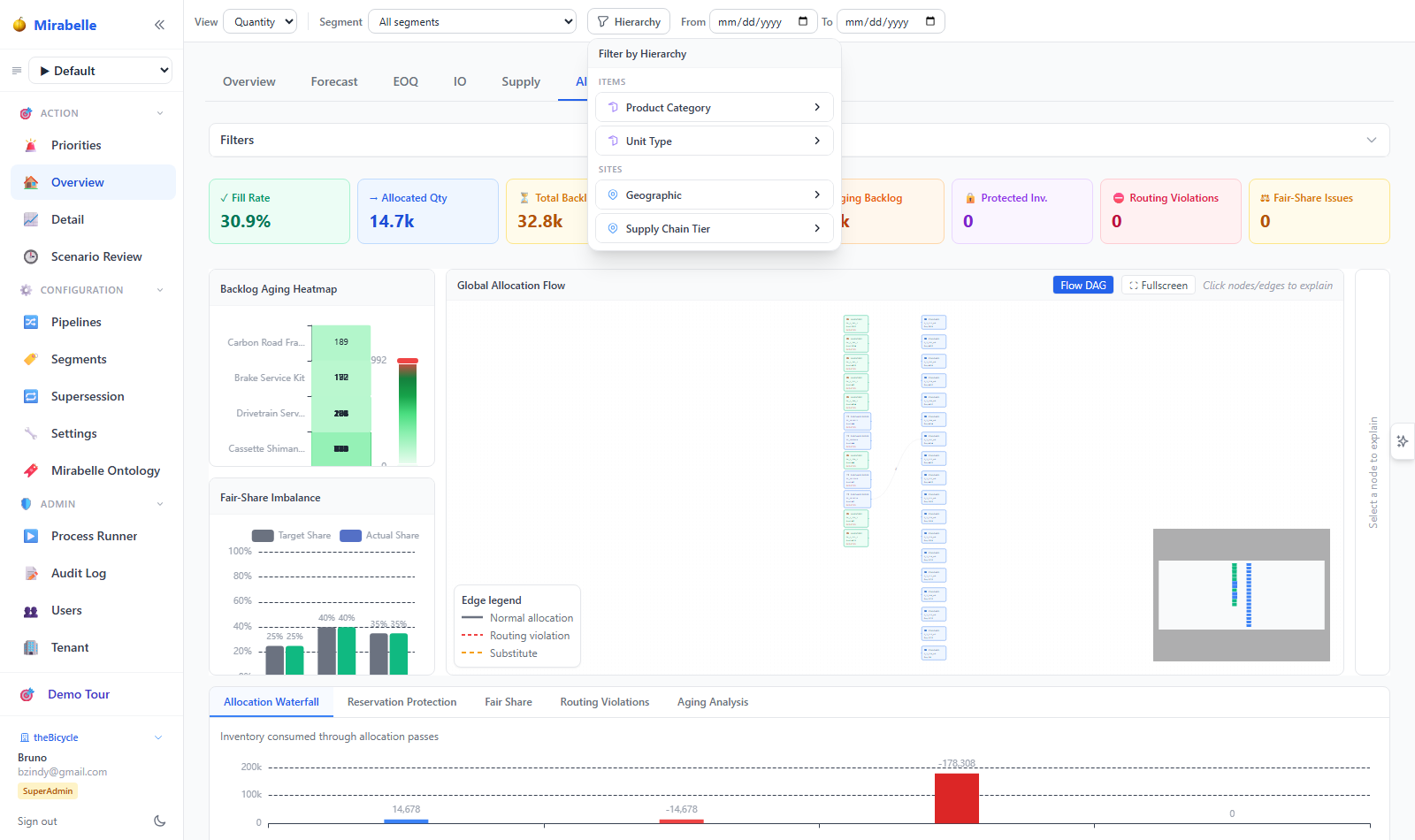
- Click the Hierarchy button in the toolbar. A dropdown panel opens,
grouped into Items and Sites sections (one section per
entity_type). - Expand a hierarchy by clicking its header row.
- Navigate the tree by expanding/collapsing nodes. Each node shows its member count on the right.
- Click a node to select it. The selected node is highlighted in violet, and a badge appears on the Hierarchy button showing the number of active filters.
Breadcrumb navigation
When a hierarchy node is selected, the active filter is displayed in the dropdown's Active filters section. Each active filter shows:
- An icon indicating item (cube) or site (pin) entity type
- The hierarchy name and selected node value
- A dismiss button (×) to clear that individual filter
Click Clear all to remove every hierarchy selection at once.
How filtering works
When you select a node, the HierarchyFilter component:
- Calls
/api/hierarchies/{id}/membersto resolve the selection to a set ofunique_idstrings. - If multiple hierarchies are active, their member sets are AND-intersected — only series present in all active selections remain.
- Passes
{hierarchy_id, hierarchy_selections}as query parameters to every Dashboard API call, enabling DB-side pushdown filtering for optimal performance on large datasets.
All dashboard tabs — Overview, Forecast, EOQ, IO, Supply, Allocation — respect the hierarchy filter. The series table is also filtered client-side.
Hierarchy in MEIO
MEIO segment rules can reference hierarchy levels to assign differentiated service-level targets. This allows you to set policies like:
"All items in Product Hierarchy → Bikes → Mountain get a 97 % service level target, while items under Bikes → Road get 95 %."
How it works
When the MEIO engine evaluates segment rules, it can use the same attribute
keys that define hierarchy levels. Because hierarchies are built from the
attributes JSONB column, any rule that filters on attributes->>'category' =
'Bikes' naturally aligns with the hierarchy tree.
This means:
- Segment definitions and hierarchy nodes share the same attribute vocabulary.
- Changing a hierarchy level key automatically affects any MEIO rule that references the same key — keep attribute keys stable across both.
See MEIO User Guide and MEIO Parameters for details on configuring segment rules.
Hierarchy in Allocation
The allocation engine uses hierarchies for fairness tracking across hierarchy nodes. This ensures that, when supply is constrained, items in the same business category receive proportional fill rates rather than one category monopolising available stock.
Example
Suppose your allocation policy defines three priority classes (A, B, C). Within the "Bikes" category of your product hierarchy, you want to ensure that Class A items receive their proportional share before Class B or C items are considered.
The hierarchy filter propagated to the allocation tab enables:
- Fill-rate heatmap — grouped by hierarchy node, showing how fill rates vary across the tree.
- Allocation overview — KPIs broken down by hierarchy level so planners can spot imbalances early.
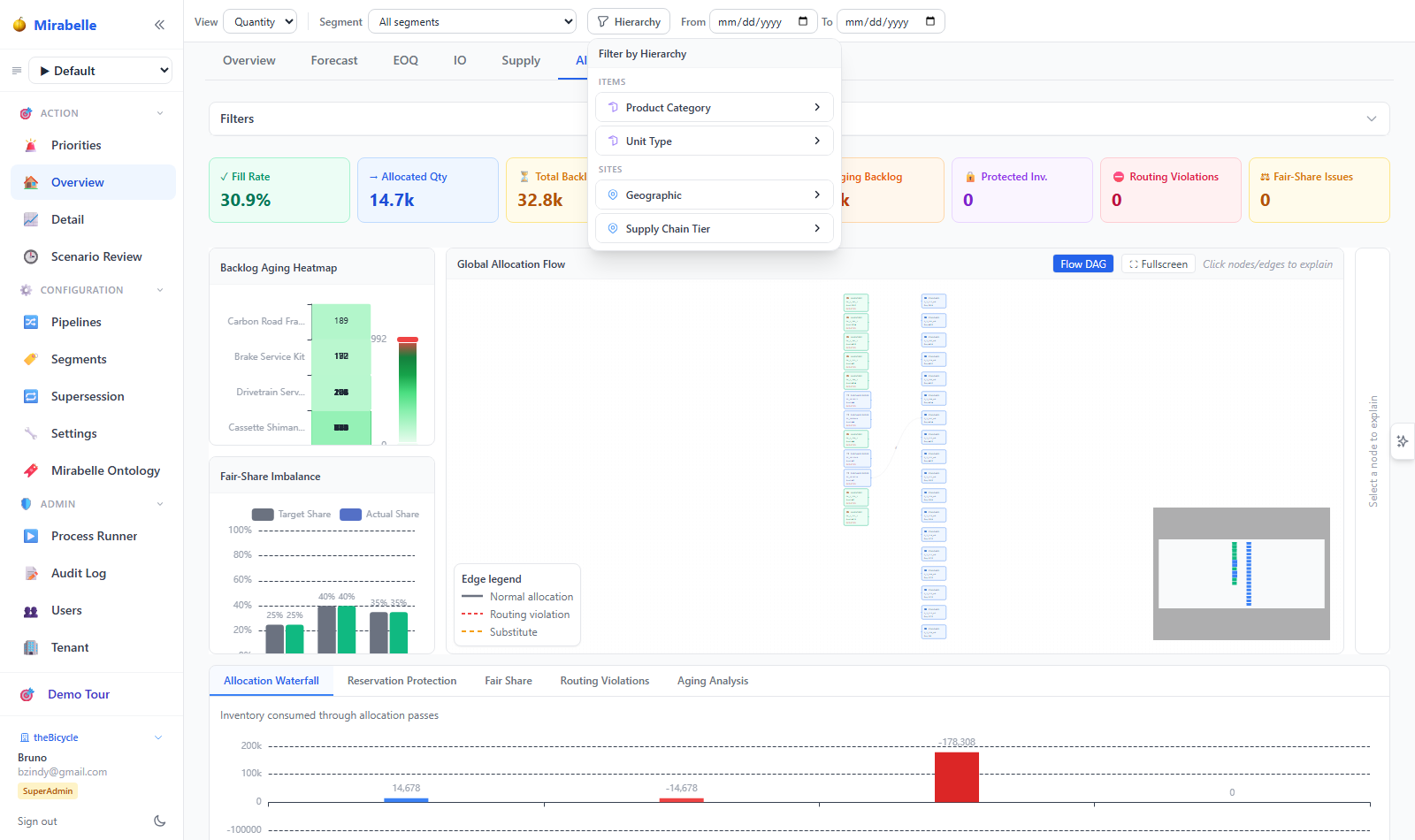
When the hierarchy filter is active on the Dashboard, the AllocationOverview
and FillRateHeatmap components receive the filtered unique_id set,
restricting their displays to the selected branch.
See Allocation User Guide for the full allocation workflow.
API Reference
| Method | Endpoint | Description |
|---|---|---|
GET |
/api/hierarchies |
List all active hierarchy definitions. Optional query param entity_type filters to "item" or "site". |
POST |
/api/hierarchies |
Create a new hierarchy. Body: {name, entity_type, levels, description?, sort_order?}. Returns {id}. |
GET |
/api/hierarchies/{id}/tree |
Return the full tree structure for a hierarchy, auto-built from distinct attribute values. Includes rolled-up member counts. |
GET |
/api/hierarchies/{id}/members |
Resolve node selections to entity IDs. Query param selections — JSON array of {level, key, value}. Returns {entity_type, item_ids, site_ids, unique_ids, count}. |
PUT |
/api/hierarchies/{id} |
Update a hierarchy definition. Body: {name?, levels?, description?, sort_order?, is_active?}. Returns {ok: true}. |
DELETE |
/api/hierarchies/{id} |
Permanently delete a hierarchy. Returns {ok: true}. |
Common query parameters (Dashboard endpoints)
Many Dashboard API endpoints accept hierarchy filter parameters for DB-side pushdown:
| Parameter | Type | Description |
|---|---|---|
hierarchy_id |
int |
The master.hierarchy row ID to filter by |
hierarchy_selections |
string |
JSON array of selections, e.g. '[{"level":1,"key":"category","value":"Bikes"}]' |
When both are present, the backend resolves the selection to (item_ids,
site_ids) integer lists and applies them as SQL WHERE conditions, avoiding
the need to ship large unique_id lists over the wire.