Segments and Classifications
Segments
Route: /segments
Segments are named groups of item-site series sharing common characteristics. A segment is defined using a recursive criteria builder and can be used to:
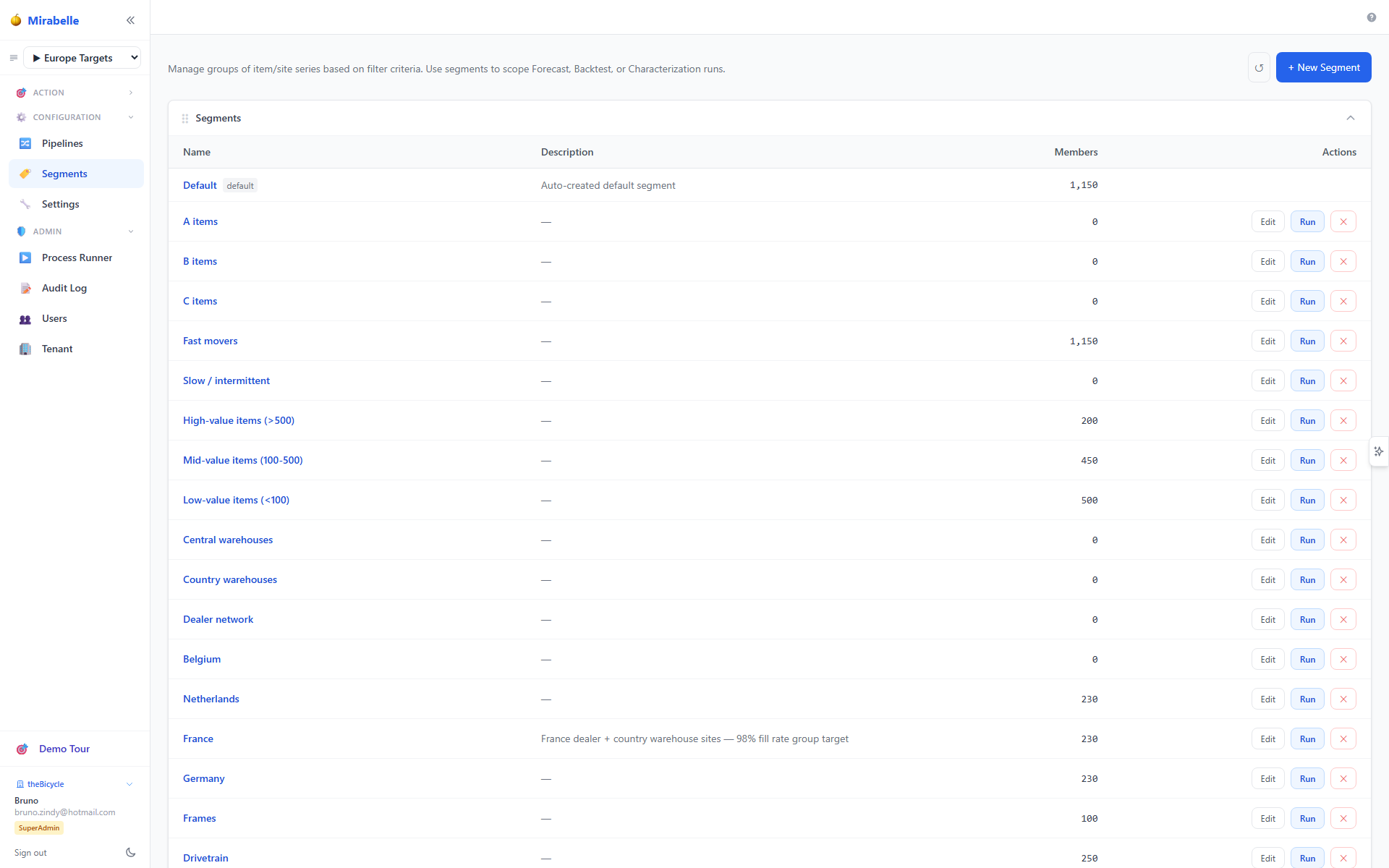
The Segments page lists all configured segments and the number of matching series.
- Filter the Dashboard, Series table, and Exceptions screens
- Assign different MEIO parameters per group
- Apply different forecasting parameter sets per group
- Scope exception filtering
- Define ABC/XYZ cross-combinations (e.g. AX parts)
Creating a Segment
- Navigate to Segments in the sidebar.
- Click + New Segment.
- Enter a name and optional description.
- Build criteria using the criteria builder.
- Click Preview to count matching series.
- Click Save.
The Criteria Builder
Each condition has three parts: Field, Operator, Value. Conditions combine with AND or OR. Groups can be nested.
Available field categories:
| Category | Examples |
|---|---|
| Item | Item Code, Item Name, Item Type, custom item attributes |
| Site | Site Code, Site Name, Site Type, custom site attributes |
| Demand / Series | is_intermittent, has_seasonality, has_trend, complexity_level, n_observations, mean |
| Classification | One entry per active ABC/XYZ config (e.g. Default (demand), XYZ (order hits)) |
The Classification group appears in the field dropdown when at least one ABC/XYZ configuration has been run. Each classification field offers the class labels defined in that config (e.g. A/B/C or X/Y/Z) as enum options.
Example: AX parts
This selects all series classified A in the demand-volume scheme AND X in the order-frequency scheme.
Order frequency parameter overrides
Segments can also be used to assign different order_frequency parameter sets to
different item groups. For example, high-volume items might have weekly + monthly
ordering, while slow movers are limited to quarterly + annually. This is configured
in Settings → Parameters → Order Frequency by assigning a parameter set to
one or more segments. See Order Frequency Parameters.
Pre-built combination segments are provided out-of-the-box:
| Segment | Criteria |
|---|---|
| AX parts | Default (demand) = A AND XYZ (order hits) = X |
| BX parts | Default (demand) = B AND XYZ (order hits) = X |
| AY parts | Default (demand) = A AND XYZ (order hits) = Y |
| CZ parts | Default (demand) = C AND XYZ (order hits) = Z |
Classification field names
The field key is classification.{config_name}. If a classification config is renamed, segments using the old name must be updated manually.
ABC / XYZ Classification
Route: /pipelines → Classification tab (leftmost tab)
ABC and XYZ are independent classification schemes. Multiple schemes can run simultaneously. Each scheme produces a class label per item-site combination that feeds into:
- Segment criteria (filter by class combination)
- Dashboard series table (one column per scheme)
- Combined results table (see below)
Default Configurations
| Config | Metric | Labels | Meaning |
|---|---|---|---|
| Default (demand) | Demand volume | A / B / C | A = top 80% of cumulative demand |
| XYZ (order hits) | Order hits | X / Y / Z | X = top 80% by order count |
Combined Results Table
The /abc page (Classifications) shows a combined table — one row per SKU, one column per active classification. Use the filter chips in the header to filter by class across multiple schemes simultaneously:
- Click A on "Default (demand)" → show only A-class items
- Click X on "XYZ (order hits)" → combine: show AX items only
- Filters are AND-combined across schemes
Running Classifications
From /pipelines → Classification tab:
- Select a configuration card on the left.
- Click Run to compute classes for the active pipeline.
- Click Run All to run all active configurations at once.
After running, results appear in:
- The combined table on /abc
- The Dashboard series table (one column per config)
- As criteria options in the Segment builder
The Classifications page shows the combined ABC/XYZ results table with filter chips.
Configuring a Classification
Click + New Classification to create a new scheme:
| Field | Description |
|---|---|
| Name | Display name (also used as the classification.{name} field key in segment criteria) |
| Metric | hits (order count), demand (qty sum), value (qty × price) |
| Lookback | Months of history to use |
| Granularity | Per item/site or per item (all sites aggregated) |
| Method | cumulative_pct (Pareto), rank_pct (top N%), rank_absolute |
| Class labels & thresholds | Define how many classes and where the cut-offs are |
| Dynamic anchor | If enabled, each series uses its own last N months rather than a fixed global window |
Items Can Belong to Multiple Segments
A series can match multiple segments simultaneously. When multiple segments conflict on a parameter (e.g. MEIO fill rate), the system uses the priority order configured in MEIO Scenarios — higher rows win.